Adding Play Console "Tags" to 53 Apps in a Day — Automating a Menu That Has No API
Google Play Console store settings tags feed search, discovery and the peer group an app is compared against, and all of ours were empty. This covers the 160 game tag vocabulary, how thin the non-game vocabulary is, driving the browser directly to tag 53 apps because there is no API, and where synthetic clicks work and where they do not
On October 3, while comparing our Play Store pages against other apps, one thing stood out. A well-known Sudoku app’s page carried a row of chips such as “Puzzle, Logic, Sudoku, Casual, Single player, Offline,” while our Sudoku had exactly one: “Puzzle.” All seven of our apps I checked had only the category chip.
Those chips are the tags you set in Play Console under Store settings → Manage tags. Up to five per app. Google’s help text says they “help users discover your app on Google Play” and that they “may affect where your app is shown and the peer group it is compared against.” Our new-app checklist never had this step, so more than fifty apps had none.
First, learn the vocabulary
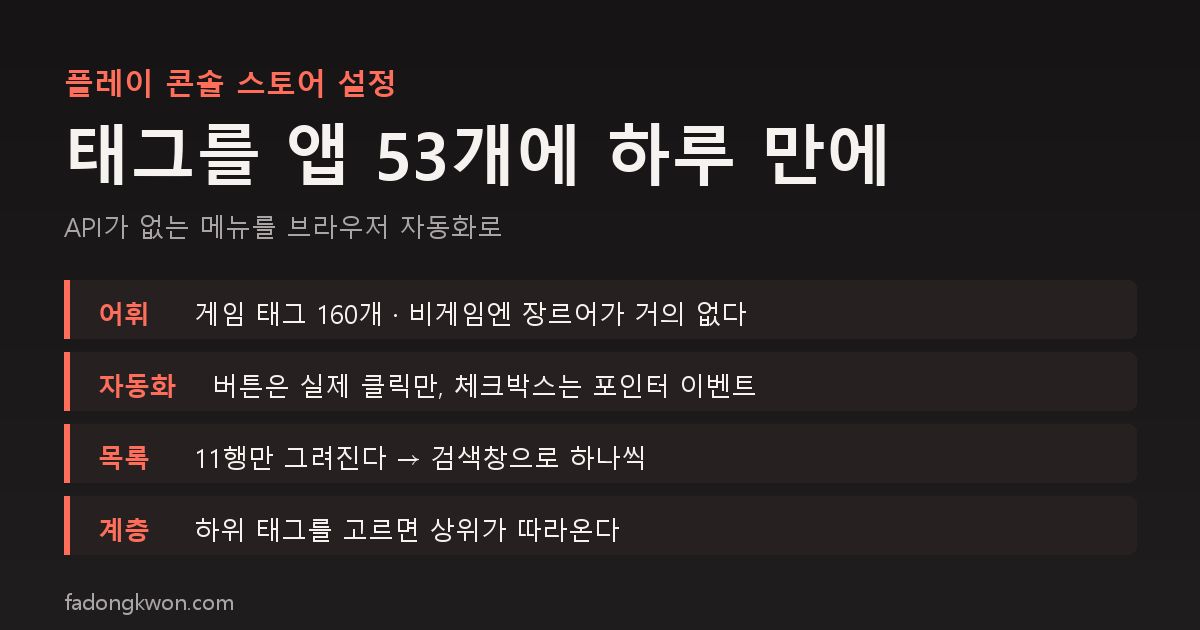
Tags are not free text. You pick from a list Google defines. The game list has roughly 160 entries. The genre coverage is fairly dense: logic puzzle, sliding puzzle, merge puzzle, block puzzle, bubble shooter, brick breaker, brain game, brain training, abstract strategy, checkers, chess, dice, solitaire, hyper-casual, mini game, party game, physics-based, and so on. For the nine board games and the puzzle games there was plenty to choose from.
The problem is non-games. The tag list for app categories has nothing for fortune, saju, tarot, lotto, quiz or exam prep. Searching turned up a single fortune-related tag: “Horoscope.” So apps like Saju Lotto or Car Number Lotto could only take Entertainment, Horoscope and Lifestyle, the history and economics quiz apps got Education, Study guide, Self-improvement and Books & reference, and the lotto-vs-savings simulator got Personal finance. The real finding was that Play simply has no vocabulary for what genre our non-game apps are.
There is no API
This menu cannot be touched through the Play Developer API. Store listings, screenshots and releases all go through the API, but tags are console-web only. Fifty apps times five tags is 250 selections, which I did not want to do by hand, so I decided to drive the browser with a script.
Looking closely at the console page, there were several traps.
- The Manage tags button ignores synthetic clicks. Calling
click()from JavaScript, or faking pointer events, does not open the dialog. This one button needs a real mouse click. - The checkboxes inside the dialog are the opposite.
click()does nothing, but if you take the element’s coordinates and dispatchpointerdown → mousedown → pointerup → mouseup → clickin that order, it toggles. The Material checkbox listens to pointer events. - The list renders only 11 rows. Of 160 tags, only the visible ones exist in the DOM, and scrolling programmatically does not render more. But if you set a value in the search box at the top and dispatch an input event, only the matching rows remain. So I switched to searching each tag name and ticking it.
- There are two search boxes, so you have to pick the one whose aria-label is “Search tags,” not the “Add filter” one.
- Apply saves immediately. Unlike store listing changes, this does not trigger a new review. The chips on the public store page update a few hours later.
The flow per app was “open the store settings page → real click on Manage tags → search and tick five tags in the dialog → Apply → read back the tag line on the page to confirm.” With four tabs running four apps at a time, it was done in under an hour.
How I chose the tags
I kept the rule simple: one top-level tag matching the category, one tag that names the genre precisely, and two or three that describe how it plays.
- Sudoku, Minesweeper, Lights Off, Box Push: Puzzle, Logic puzzle, Brain game, Brain training, Casual
- Reversi, Four in a Row, Gonu, Mancala: Board, Abstract strategy, Brain game, Strategy, Casual
- Checkers: Board, Checkers, Abstract strategy, Brain game, Strategy / Janggi: Board, Chess, Abstract strategy, Strategy, Brain game
- Brick Breaker: Arcade, Brick breaker, Casual, Hyper-casual, Mini game
- Billiards and Mini Golf: Sports, Billiards or Golf, Physics-based, Casual, Mini game
- Yut Nori: Board, Dice, Party game, Casual, Strategy
One thing I learned is that tags have a hierarchy. When I added “Runner” to Sky Jump, the saved result included Runner’s parent, “Action,” and because of the five-tag limit “Hyper-casual” was pushed out. Choosing a child tag can pull in its parent, so when you fill all five slots you have to account for that.
Result
All 53 apps live on Play now have tags. The 41 games have five each; the non-games have three or four because the vocabulary is not there. 2048, which already had tags, I left alone.
The effect is not immediately visible. Tags do not directly raise search rank. They change where the app is shown and what it is compared against, so I plan to compare store visits against September in about a month.
Summary
- Put store settings tags in your new-app checklist. I spent two months with fifty apps left empty.
- The game tag vocabulary is generous; the non-game vocabulary has almost no genre words.
- A menu without an API can still be automated through the browser, but some elements only accept real clicks. Try one, verify, then run the rest.
- Choosing a child tag may pull in its parent tag.