Applying for the Google Play Games on PC "Playable" Badge — How I Checked 52 Games on the Emulator in One Day
To be discoverable in Google Play Games on PC, a game needs the "Playable" badge. I enabled Hyper-V and the developer emulator, batch-installed 52 debug builds over adb to check for crashes, ANRs and frame rate, and filed the label request for 41 games. Also covered are a blind tap that opened Chrome and misjudged 10 games, and the "Not enrolled" button that was really an opt-out
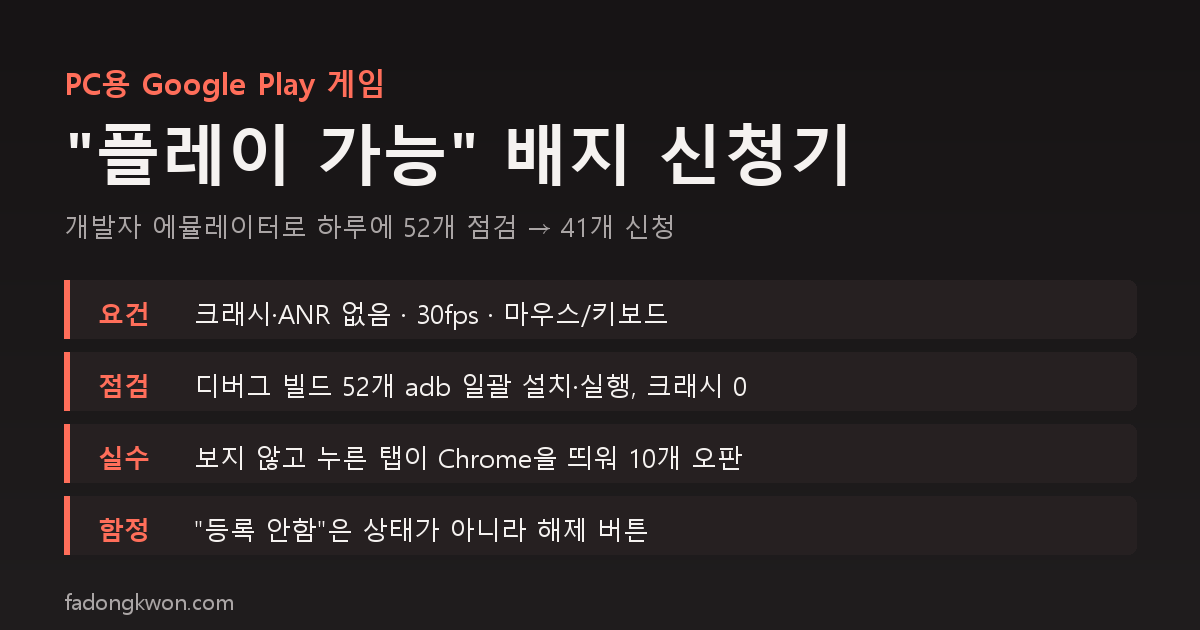
Free games show up in Google Play Games on PC without any extra steps. But a game that has not been reviewed is marked “untested” and only appears if someone searches for it inside the PC app. To be listed in the browse pages and on the store page, you need the “Playable” badge, and to get it the developer has to verify the requirements on the PC emulator first and then file a request form.
I had written this down as a to-do while reviewing free acquisition on Play on October 3, and I finished it yesterday in a single day. Here is how it went, in order.
Four requirements
Google’s checklist asks for a short list for the “Playable” label.
- The game is stable and does not crash
- It does not generate significant ANRs (application not responding)
- FPS is stable and at or above 30
- It supports mouse and/or keyboard
On top of that come compatibility items: disable Android features and permissions that PC cannot provide, and do not use unsupported Google APIs. Our games are HTML games running inside a WebView, with only three permissions (internet, notifications, boot completed) and no hardware feature declarations such as camera or location, so there was nothing to trip over on the compatibility side.
Installing the emulator
The developer emulator is a different build from the consumer “Google Play Games beta.” It supports sideloading and adb, and it needs Hyper-V.
This PC runs Windows 11 Pro, so Hyper-V could be enabled. After a reboot I installed the emulator and signed in with a Google account, and that was it. adb connects at localhost:6520. You get a virtual device running Android 14 at 1920×1080 and 60Hz.
On the first adb connect the device sometimes shows as offline. Disconnect and connect again and it flips to device.
How I checked 52 games in a day
With more than fifty games, opening each one by hand was not an option. A PowerShell script repeated the same steps per app.
- Install the debug APK with
adb install -r -g - Launch it through the launcher intent and wait 10 seconds
- Use
dumpsys activityto confirm that app is the one in the foreground - Search
logcatforFATAL EXCEPTIONandANR in - Take a screenshot and stop the app
There is a reason I used debug builds only. Debug builds use test ad unit IDs everywhere, so no real ad is ever shown. If a real ad were displayed or clicked on an emulator it could be flagged as invalid traffic, so checking with a build that only shows test ads is the safe way.
The result was 52 for 52: installed, stayed in the foreground, zero crashes, zero ANRs. Getting there took two stumbles, though.
Mistake 1: the blind tap
The first version of the script had a line that tapped the lower middle of the screen once, “to see the game in play.” I assumed the start button would be roughly there. But every game lays out its home screen differently, and in ten of them that spot held a card promoting another app or a share button. The tap followed an external link, Chrome’s first-run screen came up, and the script decided “the app is not in the foreground.”
I only understood when I looked at the screenshots: all ten showed the Chrome sign-in page. I removed the tap line, ran it again, and everything passed. The lesson for automated checks is never send input you have not looked at.
Mistake 2: a dialog from another app
One game, Snake, came back as “not in the foreground” twice. This time a Create profile dialog from Play Games was covering the screen. A game that ran earlier had tried to sign in and left it up. I closed it, ran Snake again, and it was fine.
How I measured frame rate
dumpsys gfxinfo counts frames, but a static home screen reports zero. So I actually started a game, sent input, and measured against the wall clock. Sky Jump rendered 273 frames in 4.8 seconds, about 56fps with 0% janky frames. The other games share the same WebView structure, so I measured one as a representative.
On a PC screen, portrait-locked games appear as a single vertical column with black bars on both sides. Only Castle Topple, which is landscape-only, fills the screen. Landscape support is not a “Playable” requirement; aspect ratio support belongs to the next tier, the “Optimized” label.
The button I almost pressed in the console
Before applying I checked Advanced settings → Form factors in Play Console to see whether Google Play Games on PC was enabled. The words “Not enrolled” were displayed prominently, so I assumed the game was not enrolled and clicked. It was not a status label. It was the button that opts the game out. A confirmation appeared saying “Deselect Google Play Games on PC? This change is published immediately,” and I canceled.
In reality all 41 games were already enrolled with “same release track and artifacts as the mobile app.” Apps submitted in a game category seem to be enabled by default. The 11 non-games, such as the lotto, quiz and tarot apps, are in app categories and have no PC section at all.
Filing the request
The request is a single support form: name, company, email, “Package IDs that meet Playability,” launch date, and a question asking whether you are unsure your games meet the requirements. I put all 41 package IDs in one field separated by commas and used the oldest game’s launch date.
After submitting you see “Your email has been sent,” and that is all. There is no status in the console; the result comes by email only, a few weeks later. If it passes, the games will appear in the PC browse pages, and I will write about it then.
Summary
- The requirements are no crashes, no ANRs, 30fps, and mouse or keyboard. A WebView game mostly passes as it is.
- Check with debug builds, with a script, and without input you have not looked at.
- “Not enrolled” in the console is a button, not a status. If a confirmation dialog appears, cancel.
- The request is one form, and the answer only comes by email.